
In Banana Gun, you withdraw by transferring funds from your bot wallet to an external address: open Wallet Settings, tap Transfer Tokens / Assets, and choose Custom Wallet. In Banana Gun Pro, you do the same with TRANSFER FUNDS in the WALLETS widget.
The docs call this a transfer, not a withdrawal, so that is the name you will see on the buttons. This guide walks through each tap, what to leave behind for gas, and what to check when a transfer fails.
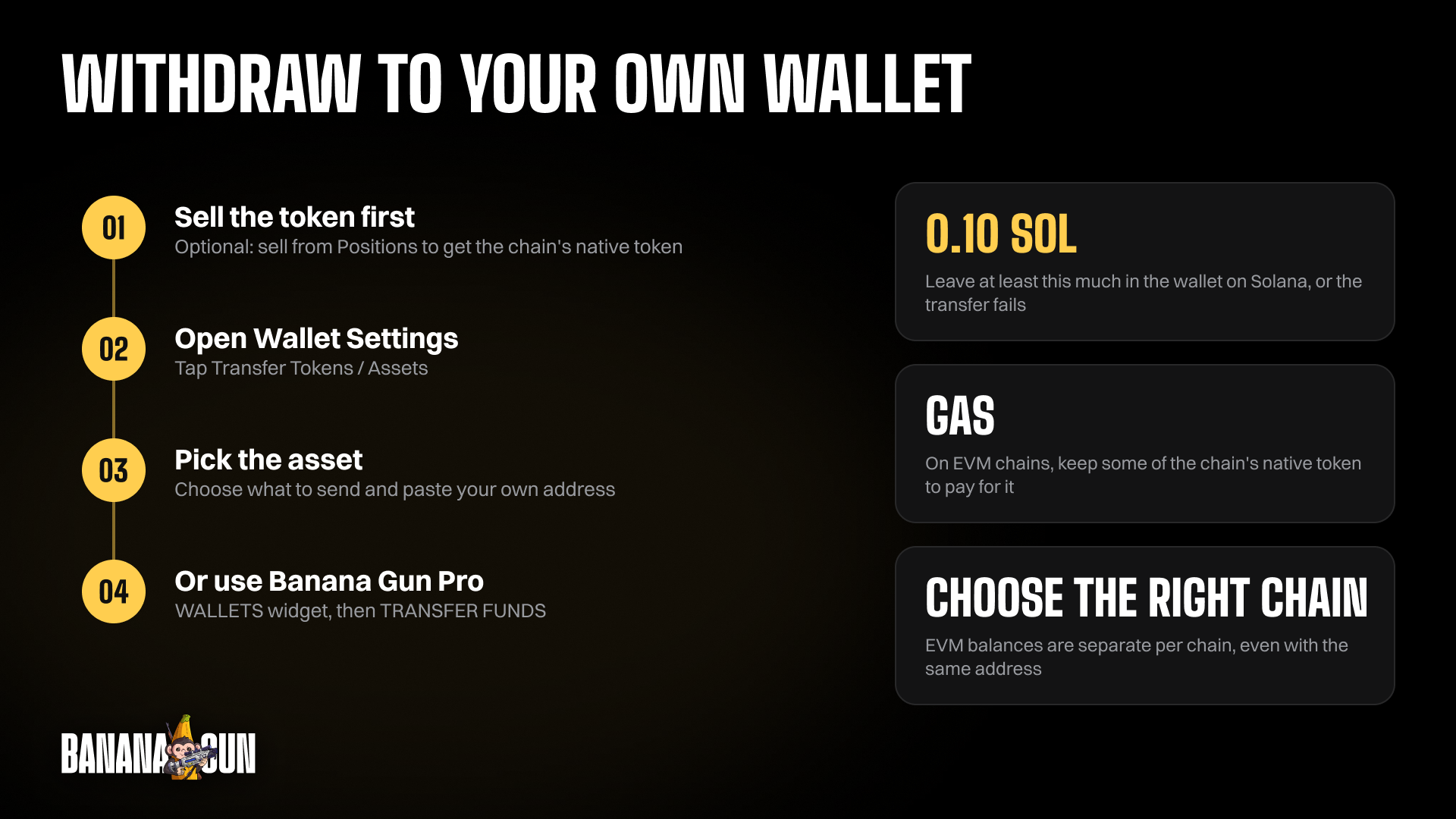
Step 1: Sell the token first (optional)
You only need this step if you want to end up holding the chain's native coin, such as SOL, instead of a token.
The docs do not say you must sell before you transfer, and the transfer flow lets you pick the asset. Whether to sell first is your call.
1. Open the token from Positions. In the bot, select the token you want to sell from the Positions panel to open the Sell panel. You can also paste the token's contract address, or tap Switch to Sell in the Buy panel.
2. Pick a sell percentage. Tap a preset percentage button, or tap Sell Custom % to type your own. You can also sell 100% of a token directly in the Positions panel.
3. Wait for the Sell Success message. The docs list it as the last step of a sell. Banana Gun handles the routing and swaps for you, using the currency you picked in the Currency panel.
Step 2: Open Transfer Tokens / Assets in Wallet Settings
This is the screen that does the actual withdrawal. It takes a few taps from the start menu.
1. Open the start menu. Tap Menu and select /start, or type /start in the text box. You can do this at any time, which helps if you get lost in a nested panel.
2. Go to Settings, then Wallet Settings. Wallet Settings is not on the start panel itself. It sits inside Settings, so tap Settings first and then Wallet Settings.
3. Select your wallet type. At the top of the panel, the Chain button shows EVM or SOL. Click it or use the arrows to switch to the one that holds your funds.
4. Tap Transfer Tokens / Assets. This opens the transfer flow. Use Back to return to the previous panel and Close to exit if you opened the wrong screen.
Step 3: Choose the asset and paste your address
The flow asks for a handful of choices in a fixed order. Take your time here, because a wrong address or chain is the one mistake the blockchain will not let you undo.
1. Select the chain (EVM only). If you are on EVM, pick the chain you want to transfer on. EVM wallets use the same address across all supported EVM chains, but balances are separate for each chain, so choose the chain where your funds sit.
2. Asset and source wallet. Pick the token or native coin you want to move, then the bot wallet that holds it. If you run more than one wallet, double-check which one you tapped.
3. Select Custom Wallet and paste the address. For the destination, choose Custom Wallet and paste the external wallet address. Copy it from your own wallet app rather than typing it, and compare the first and last characters after pasting.
4. Enter the amount and leave gas. Type how much you want to transfer. Make sure you leave enough of the chain's native token to pay for gas fees.
The docs give no minimum gas amount for EVM chains, so leave a comfortable margin rather than moving the full balance. For SOL, the error message tells you to leave at least 0.10 SOL.
Step 4: Withdraw from Banana Gun Pro
Banana Gun Pro is the web app at https://pro.bananagun.io, and its transfer flow lives in the WALLETS widget. The docs describe it for SOL and SPL tokens, so this section covers Solana only.
1. Find the WALLETS widget. This is where you manage, sort and add wallets. Click a wallet address in the widget to view it on Solscan if you want to check a balance first.
2. Select TRANSFER FUNDS. The docs say to select TRANSFER FUNDS and follow the prompts to move SOL and SPL tokens. Pick the SOL or SPL token you want to move.
3. Enter the destination in WALLET ADDRESS. To send funds to a wallet outside Banana Gun Pro, enter a public address in the WALLET ADDRESS field. A public address only, never a private key.
4. Keep some SOL for fees. The Banana Gun Pro docs give no fee minimum for transfers, so keep a SOL margin.
If you want SOL rather than a token, switch to the SELL widget and pick a percentage of your holdings first.
Moving to another chain first: the Bridge
If the destination wallet or app lives on a different chain, bridge before you transfer. In the bot, open Wallet Settings, click Bridge, then Bridge Asset.
Pick the source and destination chains, wallets and assets, enter the amount, preview the transaction, and click Confirm. Wait for the success message before you move on. Our guide to buying meme coins also covers the bridge in its own section.
Why your transfer failed
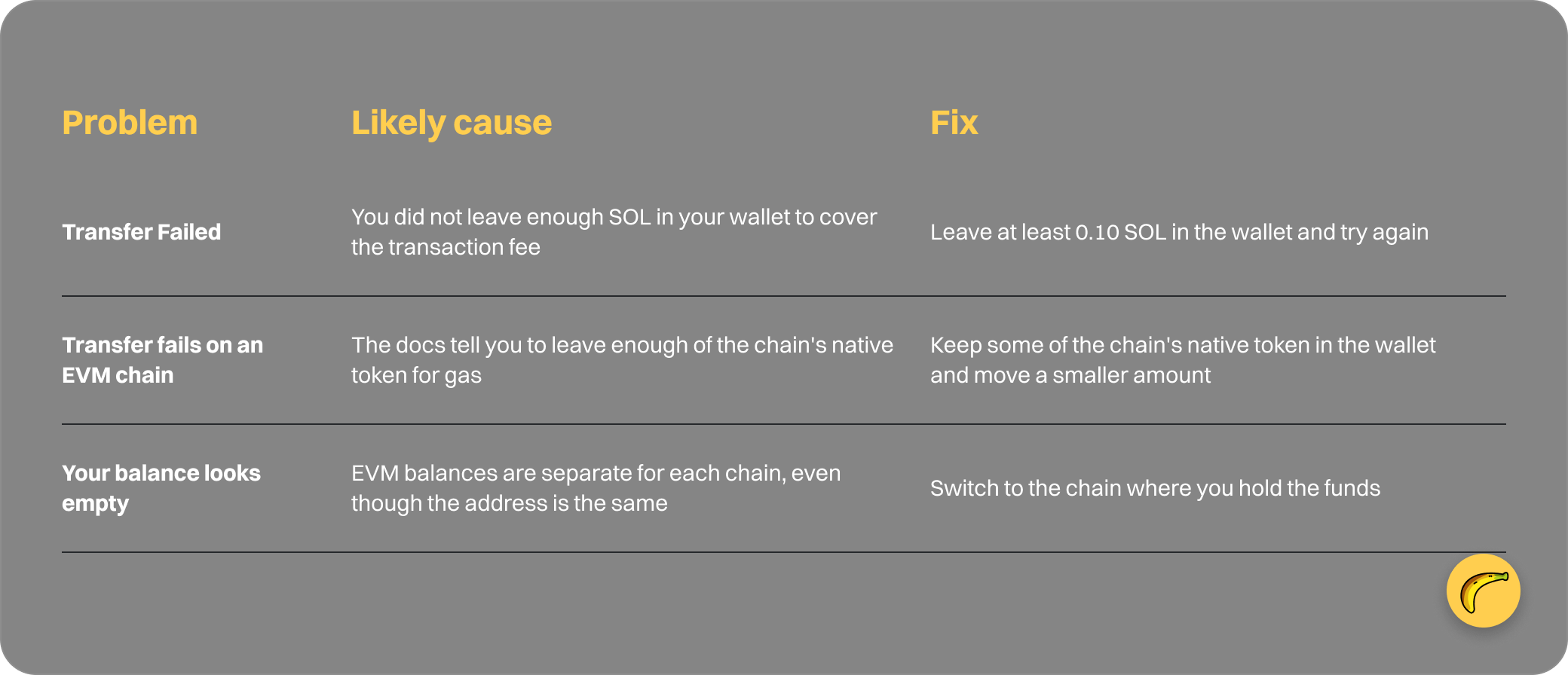
Most failures come from fees or the wrong chain. This table covers the cases the docs spell out.
The docs also list an Insufficient Funds error that asks for at least 0.05 SOL, but they do not tie it to transfers specifically.
Frequently asked questions
Is there a withdrawal fee?
The docs list no Banana Gun withdraw fee. You pay network gas, which is why the docs tell you to leave the native token behind.
The Terms of Service also say transfers through the Services "may be subject to fees", so check how Banana Gun fees work before you move a large amount.
Is there a transfer delay?
The current docs list no delay on transfers. The Transfer Tokens / Assets steps above are the full flow as documented.
Can I export my private key instead?
No. The Banana Gun and Banana Gun Pro FAQs say you cannot extract or retrieve a private key from the platform, because it is shown once at wallet creation. The transfer flow above is how you move funds out. The details are in our post on the Banana Gun private key.
Can I transfer to another wallet I own inside Banana Gun?
Yes. In the transfer flow you select the wallet to transfer to. Choose one of your own wallets there, or Custom Wallet for an outside address.
Can I withdraw to an exchange?
The docs only say to select Custom Wallet and paste the wallet address, so any address you control is the target. They give no guidance on exchange deposit tags, memos or networks, so check your exchange's deposit page for the right chain and address first.
Do I need to sell before I transfer?
No, the docs do not require it. The transfer flow asks which asset you want to move, so you can send a token directly. Selling first, as in the first trade walkthrough, only matters if you want the native coin.
Start your transfer
Open https://t.me/BananaGun_bot, send /start, and go to Settings, then Wallet Settings, then Transfer Tokens / Assets. Prefer the browser? Use TRANSFER FUNDS at https://pro.bananagun.io.