

In the Banana Gun Telegram bot you set take profit and stop loss as a Sell Limit Order: open Positions, pick your token, then click Setup Sell Limit Order. The same panel also offers Trailing Stop Loss.
If you want the general theory first, read limit orders on-chain explained. Never traded in the bot before? Start with your first trade on a Telegram trading bot.
Step 1: Open the sell limit order panel from your position
The docs say sell limit orders sell a token when its market cap or price reaches a set target. You create one from a token you already hold, so buy first, then set the exit.
1. Open Positions. In the bot, open the Positions panel and select the token you want to sell. This opens the Sell panel.
2. Click Setup Sell Limit Order. In the Sell panel, click Setup Sell Limit Order. This opens the order settings, where you choose what the order does and what triggers it.
3. Set Tokens. Click Tokens and enter the percentage of your tokens you want this order to sell.
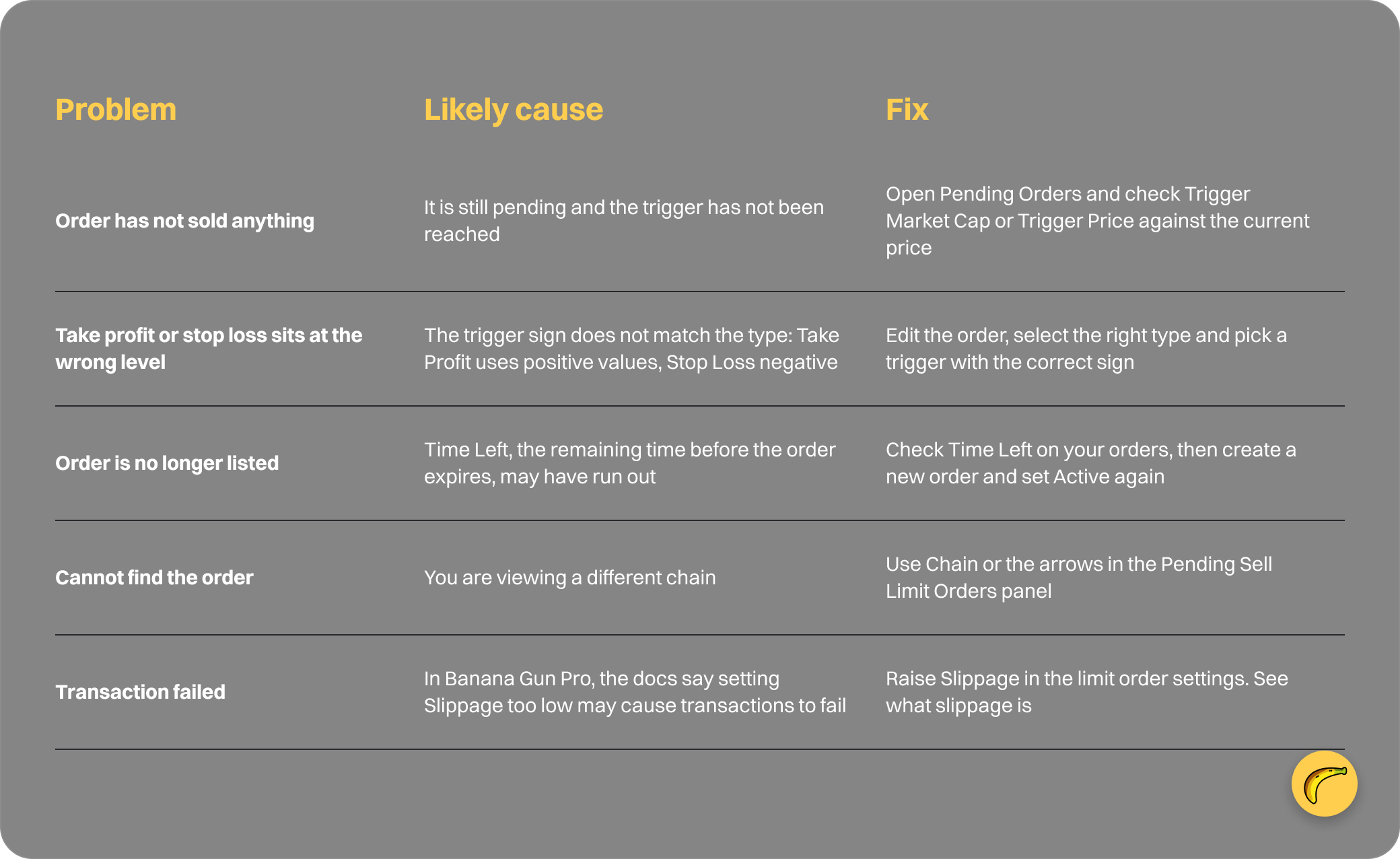
4. Set Active. Click Active and set the order duration. Once the order exists, Time Left shows the remaining time before the order expires.
Step 2: Set a take profit
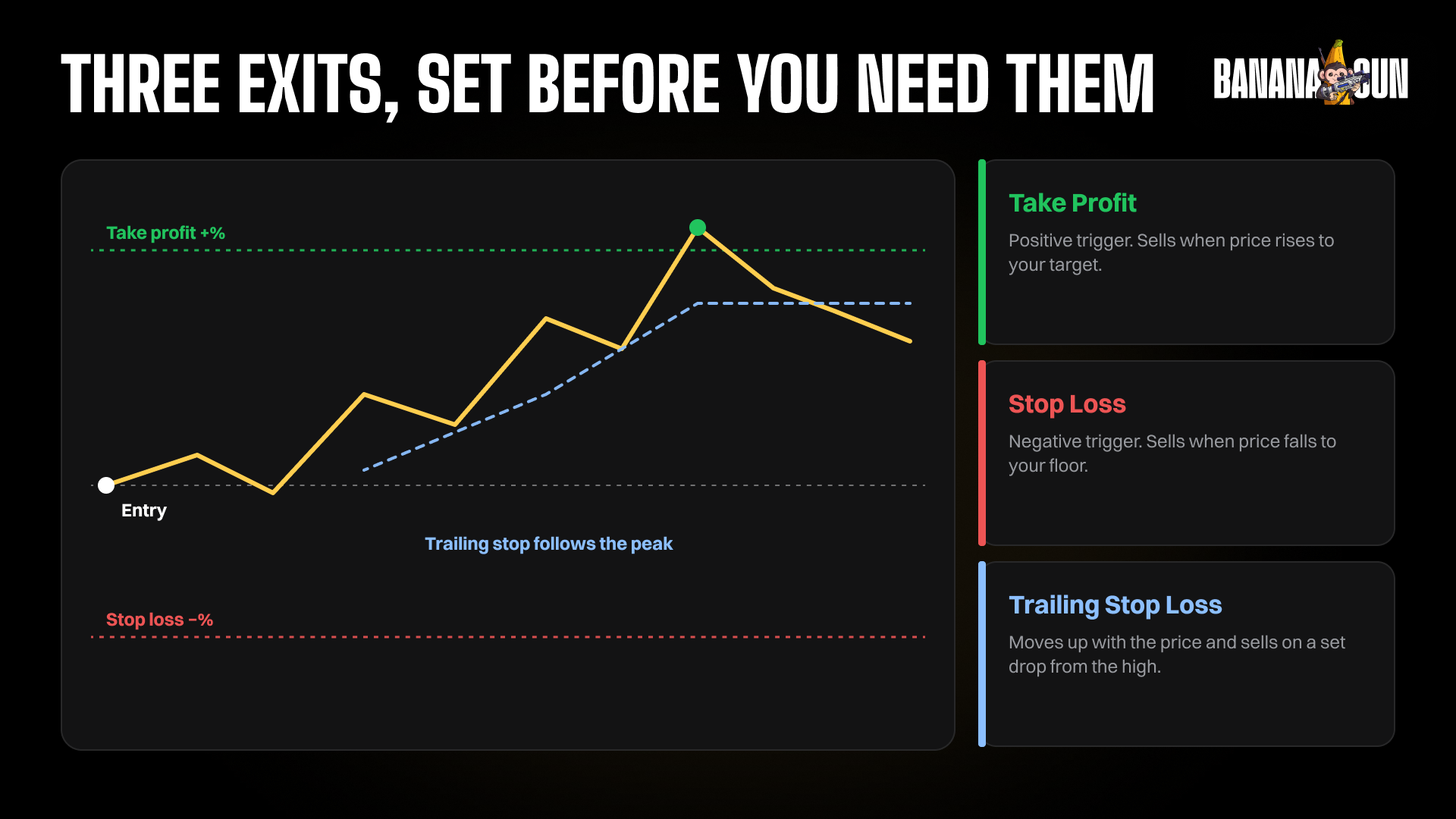
A take profit sells when the price or market cap reaches a target above your entry. The docs say Take Profit uses positive trigger percentages.
1. Select Take Profit. In the order settings, use the Take Profit toggle to choose Take Profit. The same toggle switches between Take Profit, Stop Loss and Trailing Stop Loss.
2. Click a sell button. Click the sell button showing the percentage change that should trigger the order. The docs give 100% as the example for a take profit, a 100% rise in market cap or token price.
3. Or enter your own level. If the preset buttons do not match your plan, use Custom Market Cap and enter the market cap that should trigger the order.
4. Click Execute and wait. Execute creates the order with your settings. Wait for the limit order confirmation message before you assume the order is live.
Step 3: Set a stop loss
A stop loss sells if the price falls to a level you set. The docs say Stop Loss uses negative trigger percentages.
1. Open the same panel. Go to Positions, select the token, then click Setup Sell Limit Order. Set Tokens and Active the same way as before.
2. Select Stop Loss. Switch the Take Profit toggle to Stop Loss.
3. Click a negative sell button. Pick the sell button with the drop you will accept. The docs give -100% as their stop loss example, so check the sign on whatever you click.
4. Click Execute. Wait for the confirmation message again. The toggle selects one of the three types per order, so repeat the steps if you want a take profit and a stop loss on the same token.
Step 4: Set a trailing stop loss
The docs describe a trailing stop loss as an order that adjusts with the price as it rises, to help protect gains if the price reverses. A stop loss, by the docs, sells if the price falls to a set level.
1. Start the same way. Open Positions, select the token, click Setup Sell Limit Order, and set Tokens and Active.
2. Select Trailing Stop Loss. Use the Take Profit toggle to choose Trailing Stop Loss. The docs say it adjusts the trigger as the price rises.
3. Pick the trigger and Execute. Choose the sell button for the change that should trigger the order, then click Execute. The docs do not list trailing percentages or defaults, so read what the panel shows before you confirm.
Step 5: Check, edit or cancel pending orders
The docs say you view and manage pending sell limit orders from the Pending Sell Limit Orders panel.
1. Open Pending Orders. Click Pending Orders in the start menu, then Sell Limit Orders in the Pending Limit Orders panel. Use Chain to switch networks, and Refresh to reload the list.
2. Read the order details. The Order Information tab shows Trigger Market Cap or Trigger Price, Time Left, and Executes In, a countdown until the next price check. The docs do not say how often that check runs.
3. Watch Drawback. Drawback is the percentage decline from the highest market cap to the current market cap. H/MC shows the highest market cap or token price reached since the order was created.
4. Edit or cancel an order. Click Edit beside the order, change the setting and click Update, or click Cancel to remove it.
Cancel All Pending Sell Limit Orders cancels every pending sell limit order on the selected network.
Take profit and stop loss in Banana Gun Pro
Banana Gun Pro is the web app at https://pro.bananagun.io. You create a sell limit by switching from MARKET to LIMIT ORDER in the SELL widget, using the slider, then selecting CONFIRM LIMIT SELL.
The docs do not label separate take profit or stop loss fields in that widget, and they do not say how to enter one versus the other there. Check the widget itself before you rely on it for an exit.
To edit or delete an order, open PENDING ORDERS and click CONFIGURE next to it. Limit order settings, including Slippage and Duration, sit behind the arrow next to MEV TIP.
Copy trading in Banana Gun Pro does have the labels. In the Simple setup, toggle LIMIT ORDER to add automated sell conditions, then set a TAKE PROFIT or a STOP LOSS.
Why your order did not trigger
FAQ
What does it cost to use a limit order?
The fee page lists "Manual buys and limit orders on Ethereum = 0.5%" and "Trades on other chains = 1%". It does not name limit orders on other chains separately, or Banana Gun Pro. See Banana Gun fees.
Do free trade credits apply to limit orders?
No. The Rewards page says free trade credits do not apply to limit orders, copy trades or DCA orders.
What is the difference between a stop loss and a trailing stop loss?
A stop loss sells if the price falls to a set level. A trailing stop loss adjusts with the price as it rises, to help protect gains if the price reverses.
Can I change an order after I place it?
Yes. In the bot, open Pending Orders, click Sell Limit Orders, click Edit, change the setting and click Update. In Banana Gun Pro, click CONFIGURE next to the order.
Set your exit before you need it
Open Banana Gun at https://t.me/BananaGun_bot, pick a position, and set your first take profit and stop loss with the steps above.